
Guide
How to Transcribe a Video
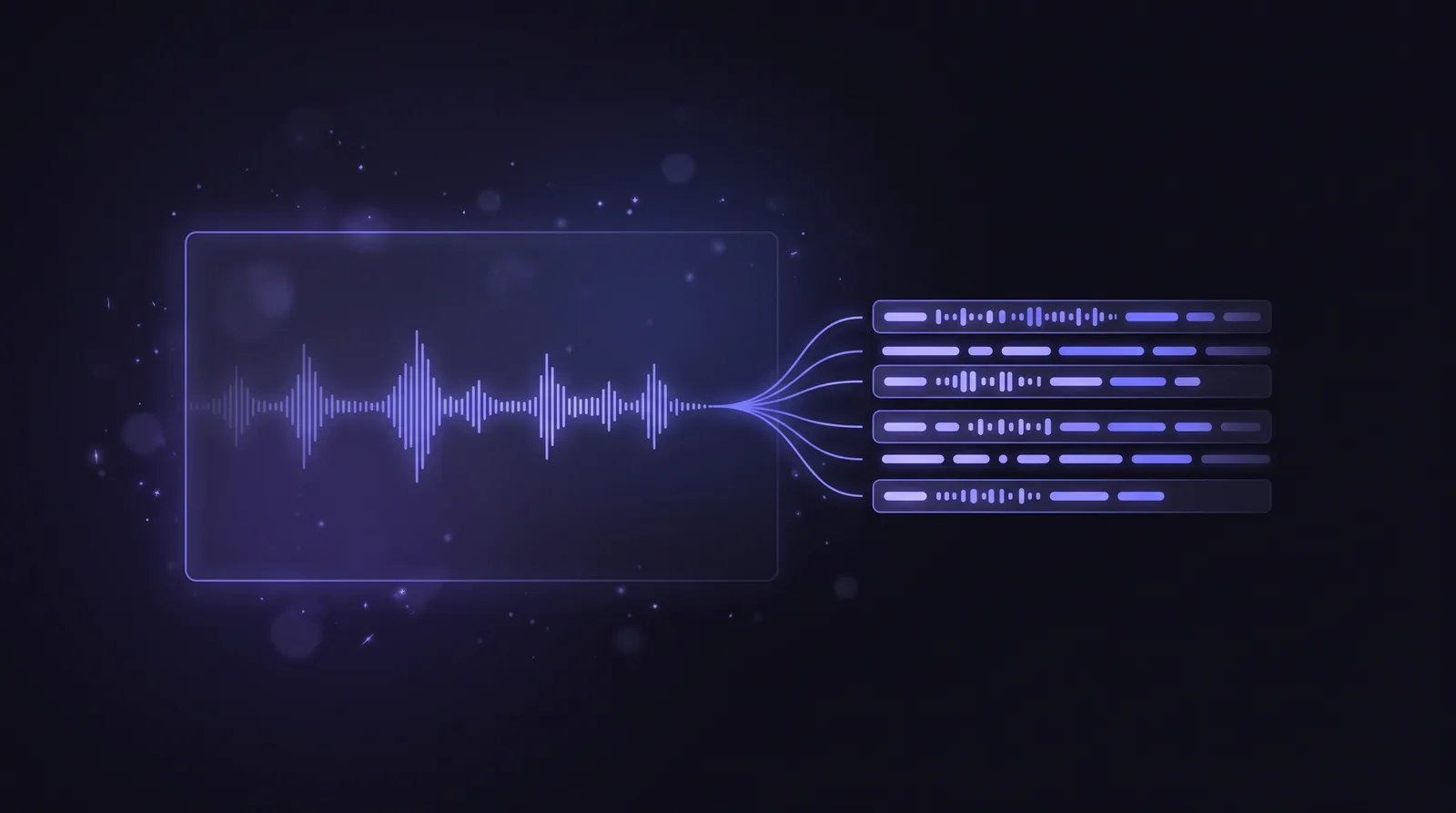
Learning how to transcribe a video unlocks two things at once: a readable text version of what was said, and ready-to-use captions that make the video accessible and watchable with the sound off. This guide shows how to turn any video — a talking-head recording, a webinar, a tutorial, your own footage — into text and subtitle files, using SRT or VTT for captions, and doing it all privately on your own PC with nothing uploaded.
What you can get out of a video transcript
Before the steps, it's worth knowing what a video transcription actually produces, because you'll often want more than one output:
- Plain text (TXT) — the full spoken content as an article, show notes, or a searchable record.
- Subtitles (SRT / VTT) — timestamped caption files that sync to the picture for accessibility and silent autoplay.
- Structured data (JSON) — per-segment timing you can feed into an editor or your own software.
A good transcriber gives you all of these from a single pass, so you decide the format after the transcription, not before.
How to transcribe a video, step by step
- Have the video file ready. MP4 and MOV are the common formats; most others work too. If the clip is online, download a copy you have the right to use first — for a social clip, see how to transcribe a TikTok or Instagram video, and for a full utility, the Video Downloader.
- Open the Transcriber. Load the video into Spark Tray's Transcriber on your Windows PC. It reads the audio track directly — no need to extract audio first.
- Set the spoken language. Choosing it up front beats auto-detect for accuracy, especially with accents or specialised terms.
- Run the transcription. The tool processes the audio locally and returns timestamped text. On a modern PC this is usually faster than watching the video through once.
- Review and edit. Fix names, jargon, and any misheard words — this is what makes captions look professional.
- Export what you need. Choose SRT or VTT for subtitles, TXT for an article or show notes, or JSON for structured data.
Getting subtitles right
Captions live or die on timing and readability. A few things to check:
- Pick the right format for the destination. Use VTT for web/HTML5 players and SRT for the widest compatibility across editors and platforms. When in doubt, export both.
- Keep lines short. Two lines of roughly 32–42 characters each is the readable standard; long captions get cut off or fly by too fast.
- Edit before you burn them in. Once captions are rendered onto the video pixels, you can't fix a typo. Get the text right in the SRT or VTT first.
If you upload the SRT alongside your video, most platforms display it as a selectable caption track. If you want captions permanently visible, your video editor can import the SRT and burn it in.
Why local transcription matters for video
Video files are big, and they're often sensitive — unpublished footage, client projects, internal training, interviews you don't have clearance to distribute. Uploading a multi-gigabyte file to a web transcriber is both slow and a privacy gamble.
Spark Tray's Transcriber processes the video on your own machine. Nothing is uploaded, there's no per-minute billing, and it works offline once installed. The accuracy comes from OpenAI's Whisper model running locally, so you get cloud-grade speech recognition without the cloud. That's the same reason it fits neatly into a broader content creator toolkit — the media stays on your PC.
Accuracy: what to expect
On clean, single-speaker audio, automatic video transcription is typically 90%-plus accurate out of the gate. Where it struggles is predictable: background music, two people talking over each other, heavy reverb, and unusual proper nouns. None of that is unique to any one tool — it's the nature of speech recognition.
The fix is the same everywhere: treat the automatic output as a fast first draft and spend a few minutes correcting it. That edit pass is still far quicker than transcribing the whole video by hand, and it's the difference between rough notes and captions you'd put your name on. For a fuller explainer covering audio files too, see how to transcribe audio to text, or compare tools in the best free transcription software.
The bottom line
To transcribe a video: load the file into a transcriber that reads the audio track directly, set the language, run it, edit the draft, and export TXT for text or SRT/VTT for captions. Keep the whole thing on your own PC and you get accurate subtitles and searchable text — for free, with your footage never leaving your computer.
Do it the easy way with Spark Tray's Transcriber
Turn any audio or video into an accurate, timestamped transcript — export SRT, VTT, TXT, or JSON, choose the model for speed vs. accuracy, and translate to English on the fly. Learn more about the Transcriber.